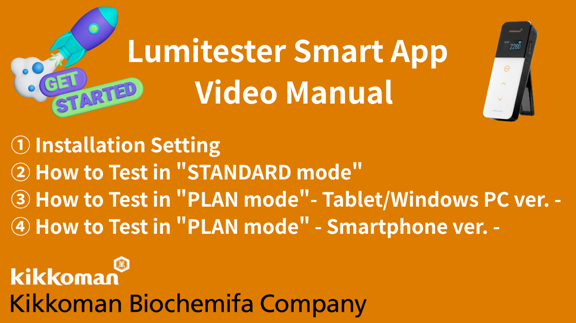
[Video Manual] Lumitester Smart App
About This Video
Overview This video provides a step-by-step guide on how to set up and connect the Lumitester Smart to the dedicated app. It walks you through everything from downloading the app and registering an account to configuring test point groups and connecting the device via USB or Bluetooth. Whether you're using a PC, tablet, or smartphone, this video helps ensure a smooth setup experience. **Click CC for subtitles** Chapter 0:00 Opening 0:08 Download the app ~ Registration 0:57 Create account 1:47 Setting your test point groups and test points -PC/Tablet ver.- 3:05 Setting your test point groups and test points -Smartphone ver.- 3:48 Icon setting -both Windows PC, Tablet/Smartphone- 3:58 How to connect Lumitester Smart to the app with USB cable 4:22 How to connect Lumitester Smart to the app with Bluetooth -Tablet/Windows PC ver.- 5:21 How to connect Lumitester Smart to the app with Bluetooth -Smartphone ver.- 5:44 2nd or subsequent time connections 6:03 ② How to Test in "STANDARD mode" 6:10 When using tablet or PC(Windows) 7:37 Saving data in bulk (when using tablet/PC) 8:33 When using smart phone 8:45 Saving data in bulk (when using smart phone) 10:50 ③ How to Test in "PLAN mode" -Tablet/Windows PC ver. - 11:06 Setting up a PLAN ~ Send PLAN 13:50 Test in PLAN mode 15:34 Loading data 16:46 If you only want to test one or several test points 17:46 ④ How to Test in "PLAN mode" -Smartphone ver.- 18:03 Setting up a PLAN ~ Send PLAN 20:30 Test in PLAN mode 22:14 Loading data 23:15 If you only want to test one or several test points Related Websites: Find more about “ATP Test (Kikkoman A3)” What is the Kikkoman ATP Test ?|Test kit ❘ Kikkoman Biochemifa Company Lumitester Smart dedicated App "Lumitester" Lumitester Smart APP|Test kit ❘ Kikkoman Biochemifa Company Case Study -ATP Test Casestudy | Kikkoman Biochemifa Distributor Network -Worldwide Distributor Network |Test kit ❘ Kikkoman Biochemifa Company